For support workers, coordinators & families
Using Complex Care App
A plain-English guide to the app your participants share with the people supporting them - what it does, why it helps, and exactly how to use every part of it, from opening your first link through to downloading a report.
Why the app is worth using
Everything below runs from a single link on your phone - nothing to install from an app store, nothing to remember beyond a short PIN.
Log the moment it happens
Tap a location, tap an event, fill in a couple of details - a behaviour, incident or daily task is recorded in seconds, from wherever you are.
Private by design
Each participant's records are protected by their own encryption key. There's no shared login to leak - just a link and a PIN unique to them.
Nothing falls through the cracks
Notices surface reminders at the top of the screen; Warnings quietly flag anything that hasn't been logged recently enough to need attention.
Reports whenever they're needed
Anyone holding the report link can pull a spreadsheet of exactly the data they need - one category or all of it, any date range - in a couple of taps.
Frequently asked questions
The things people usually want to know before (and just after) they start using the app.
Do I need to download anything from an app store?
No. The app opens straight in your phone's browser from a link, and looks and behaves like a normal app once you add it to your Home Screen. There's nothing to install and nothing to keep updated.
Where do I get my link?
Each participant has their own personal link, sent by whoever set up their account (usually by email, or shared directly as a QR code from another device already using the app - see Sharing the app). It's tied to that one participant only.
What if I lose the link, or it stops working?
Ask whoever manages the account to resend it, or - if someone else already has the app open on their own phone or tablet - have them share it with you using the app's own QR code (see Sharing the app). A link only stops working if the participant's PIN has since been changed, in which case you'll simply be asked to enter the new one.
Do I need a password?
Just a short numeric PIN, entered once per device - after that, it's remembered automatically. There's no separate username or password to manage. If the PIN is ever changed, you'll just be asked to enter the new one next time.
Can more than one support worker use the same link?
Yes - the link and PIN belong to the participant, not to any one worker. The app remembers each worker's own name and email on their own device (so you're not retyping it every visit), and every event logged records who logged it. Use Logout from the menu if a different person is about to use the same device.
Is the participant's data actually private?
Yes. Every participant's records are protected by their own individual encryption key, baked into their link - not a shared password everyone on the system uses. Records can't be read without both the correct link and the correct PIN.
Does it work without an internet connection?
No - each entry is saved straight to the participant's secure record as you go, so an active internet (or mobile data) connection is needed at the time you log something.
I made a mistake logging something - can it be fixed?
Yes. Open Event History from the menu, find the entry, and edit or delete it from there. See Reviewing your event history.
What's the difference between a Notice and a Warning?
A Notice is something a support worker types in themselves - a heads-up like an upcoming appointment - which can be dismissed once it's no longer needed. A Warning is set up in advance and appears automatically whenever something hasn't been logged recently enough (e.g. "it's been over 8 hours since the last bowel movement was recorded") - it clears itself once the task is logged again. See Notices & Warnings.
Can we add our own event types, not just the standard ones?
Yes - Edit Page lets you add, rename or remove the locations and events shown on the home screen, pick from a large built-in icon library or create something fully custom, and organise everything into categories for reporting later. See Customising the setup.
How do I get a spreadsheet of what's been recorded?
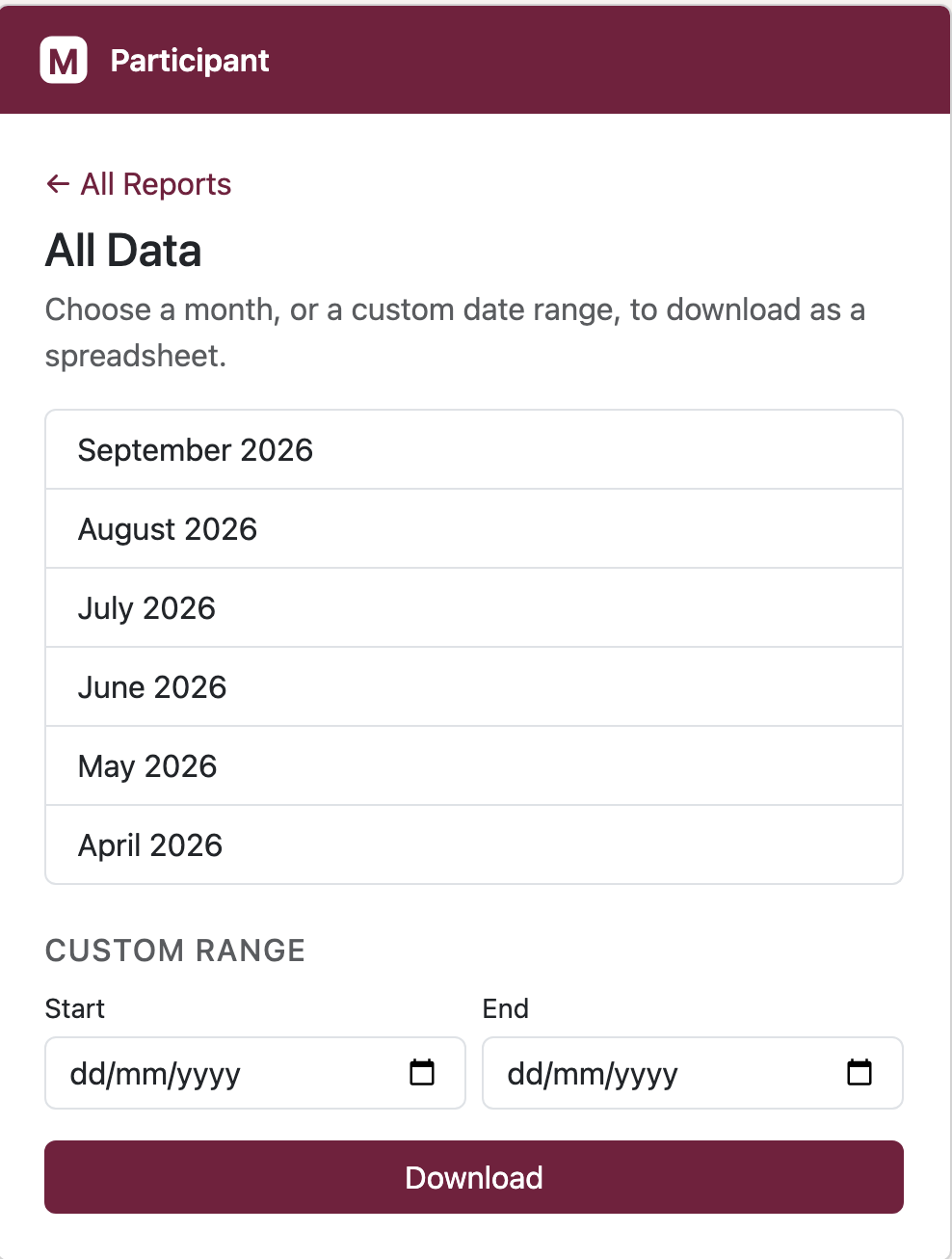
Use the participant's separate report link (sent alongside their app link, or available from whoever manages their account). It asks for the current PIN, lets you pick a category (or "All Data"), then a month or a custom date range, and downloads a spreadsheet - no app login needed. See Generating reports.
What if we need to start over / something's badly broken?
Reset to Factory Settings (in the menu) restores the standard setup - but a full copy of the previous setup is automatically checkpointed first, so it can always be brought back from Restore Backup. See Backups, export & reset.
Step-by-step: using the app
Follow this in order the first time - after that, jump straight to whichever part you need.
Getting started
Open your link and enter the PIN
Open the personal link you were given (by email, text, or scanned from another device's QR code). The first time, you'll be asked for a short numeric PIN - enter it once and your device will remember it for next time.
- The link and PIN belong to one participant - not to you personally, so it's fine to use the same link on more than one worker's phone.
- If you're ever asked for the PIN again unexpectedly, it usually means it's just been changed - enter the new one and you're back in.
Home screen
Find your way around
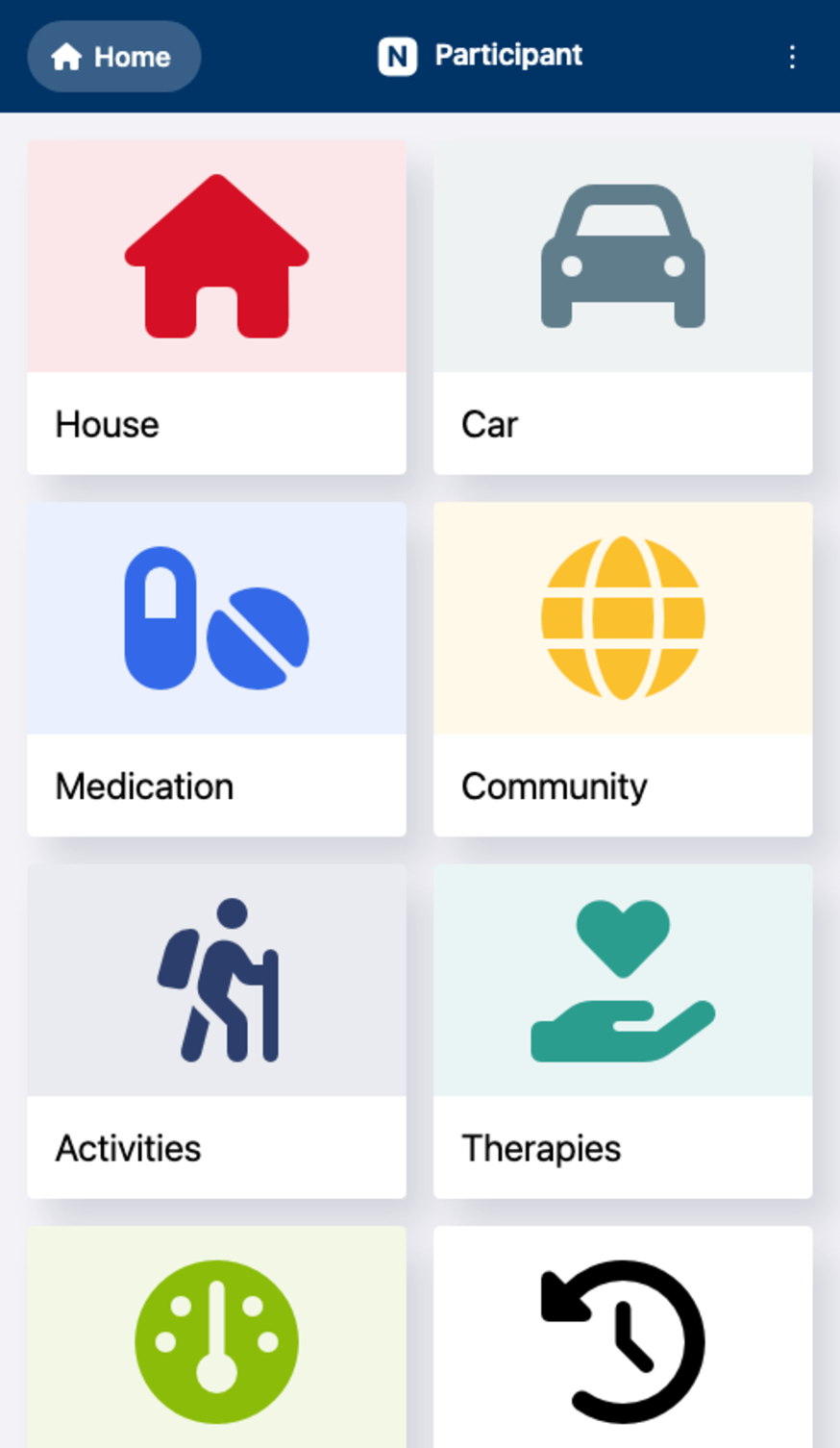
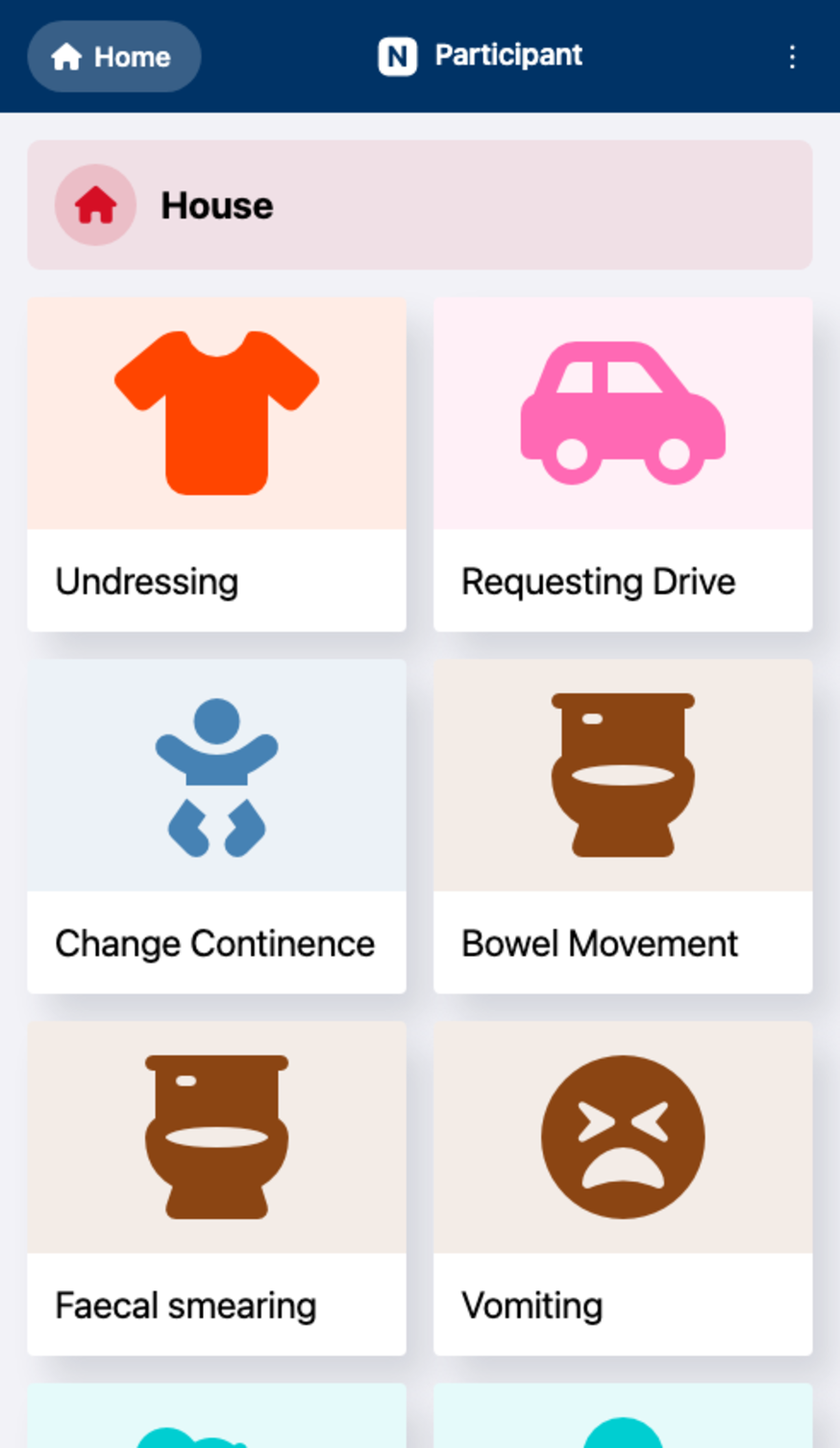
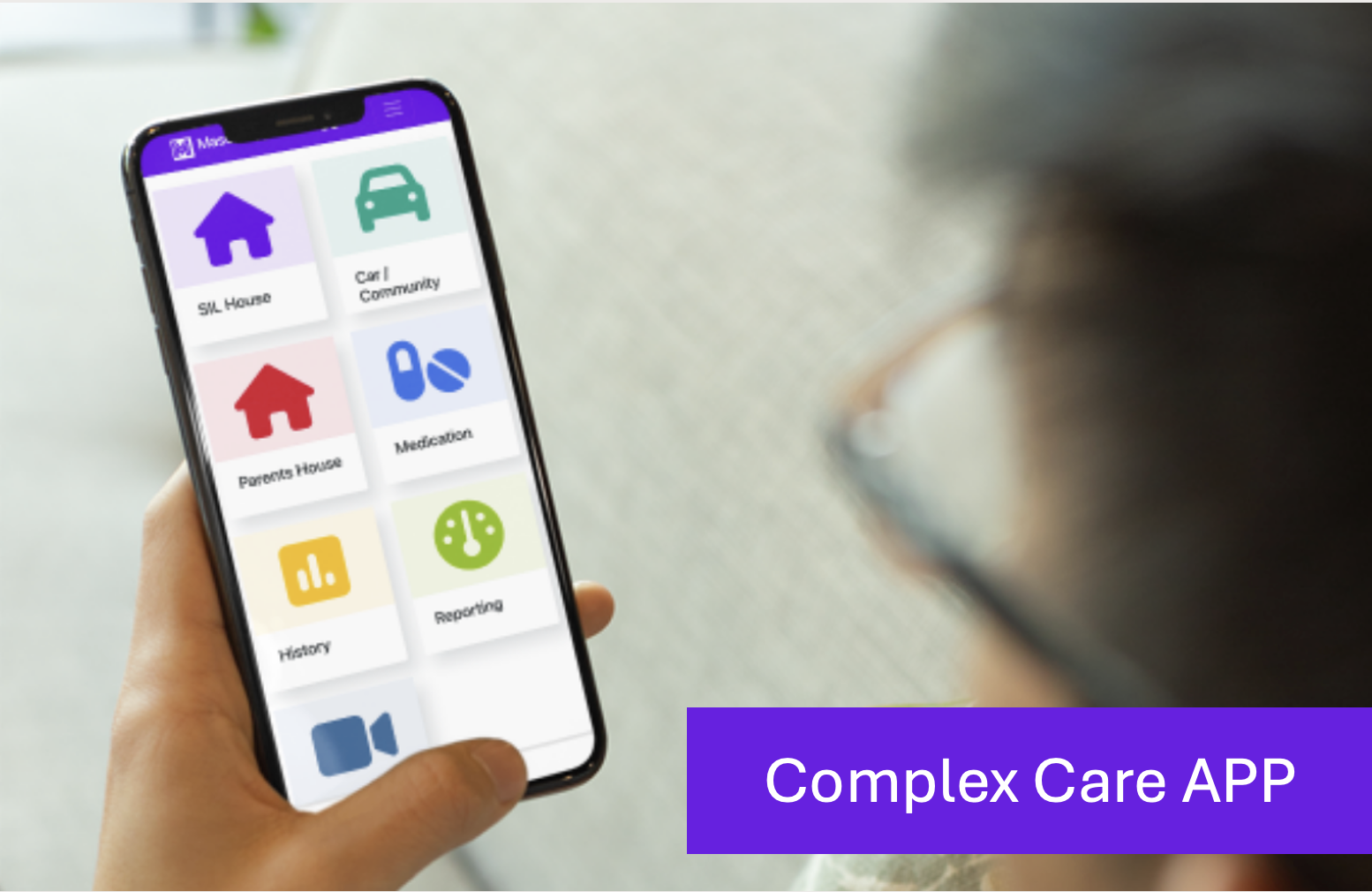
The home screen is organised by location (e.g. "SIL House", "Car / Community") - tap one to see the events that can be logged there. Anything needing attention right now - a Notice or a Warning - appears at the very top, above the locations.
- Tap the participant's name or icon at the top, at any time, to come back here.
- The ⋮ menu in the top corner is where every other feature in this guide lives.
The core of the app
Log an event
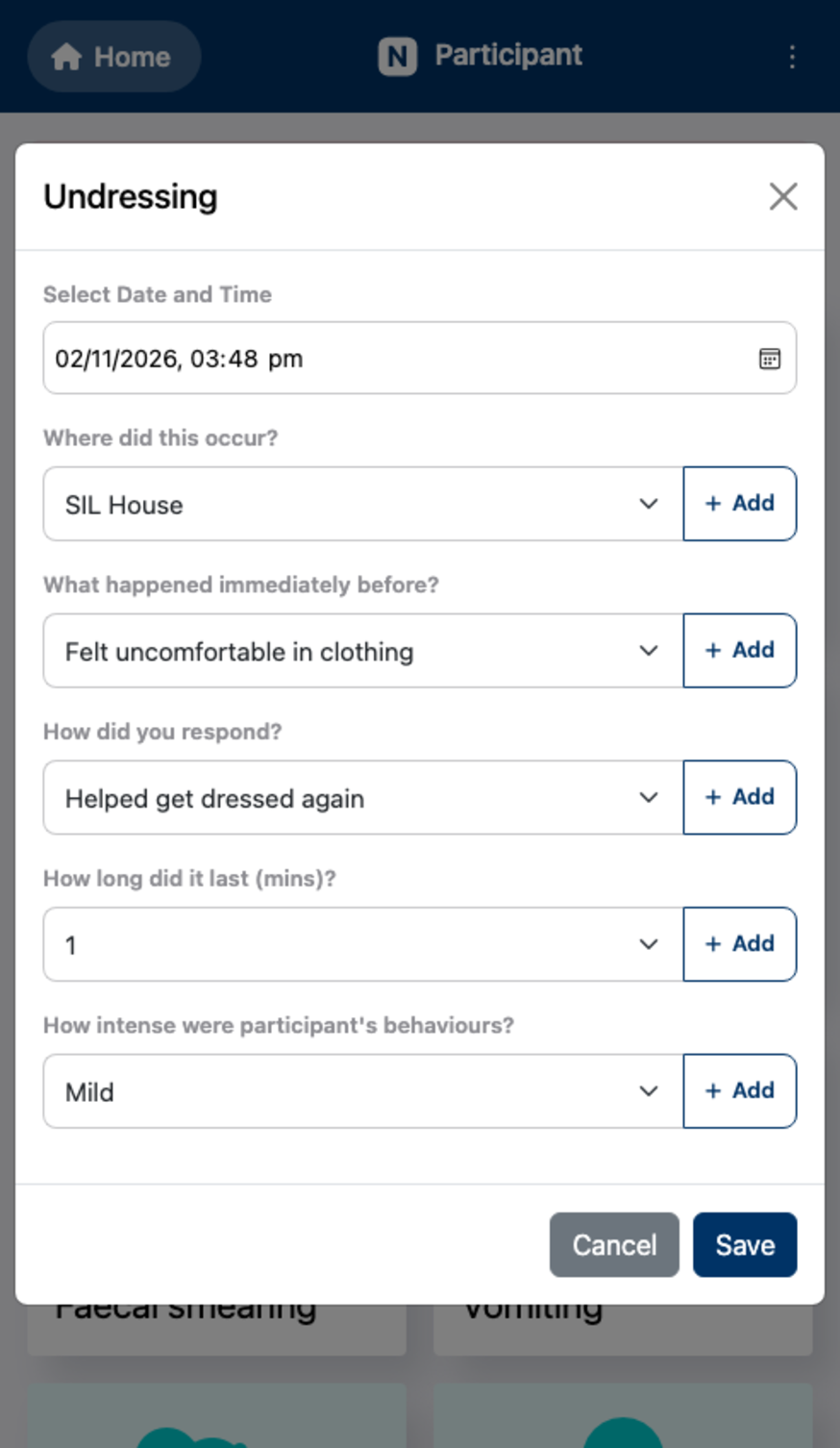
This is what you'll do most often:
- Tap a location (e.g. "SIL House").
- Tap the specific event that just happened (e.g. "Bowel Movement", "Hit at car windows").
- Fill in whatever short details are asked for - these change depending on the event.
- Check the date and time (it defaults to right now, but can be wound back if you're logging something a little after it happened).
- Tap Save.
Menu → Event History
Review, correct or delete past entries
Open Event History from the menu to page back through everything logged, one day at a time, using the Previous/Next Day buttons. Tap any entry to correct or delete it if something was logged in error.
Menu → Notices & Warnings
Notices & Warnings
Notices are quick heads-ups a support worker types in themselves - a heading and some detail, e.g. "Appointment at 12:30pm Monday" - shown at the top of the home screen (tap one to expand it), and colour-coded by type. Dismiss one once it's no longer needed; it's still kept in Notices → History afterwards.
Warnings are set up in advance against a specific event and appear automatically - they clear themselves the moment that event is logged again, and can't be dismissed manually. They can also be limited to only show during certain hours of the day. Common uses: warning if a bowel movement, meal or medication dose hasn't been logged recently enough - useful wherever pain, hunger or a missed dose is known to drive a participant's behaviour.
Menu → Edit Page
Customising the setup
Turn on Edit Page to change what's on the home screen. While it's on:
- Add Event - browse a large built-in icon library (grouped by category) to add a new event to a location, or build a fully custom one from scratch.
- Manage Lists - add, rename or remove the dropdown answer options an event's fields offer (e.g. the choices under "Where did this occur?").
- Manage Categories - add, rename or remove the categories events can be filed under (e.g. Behaviours of Concern, Daily Living, Medical/Health, Restrictive Practice), which is what later splits reports up (see Generating reports).
- Setup App - the participant's own display name and colour theme.
Tap Done when you're finished to leave edit mode.
Do this once, on each device
Add the app to your Home Screen
This makes it open and feel exactly like an installed app, with the participant's own icon and colour - without ever going through an app store.
iPhone (Safari): tap the Share icon, then "Add to Home Screen".
Android (Chrome/Edge): tap the three-dot menu, then "Add to Home screen" (or "Install app").
Menu → Share App
Sharing the app with another support worker
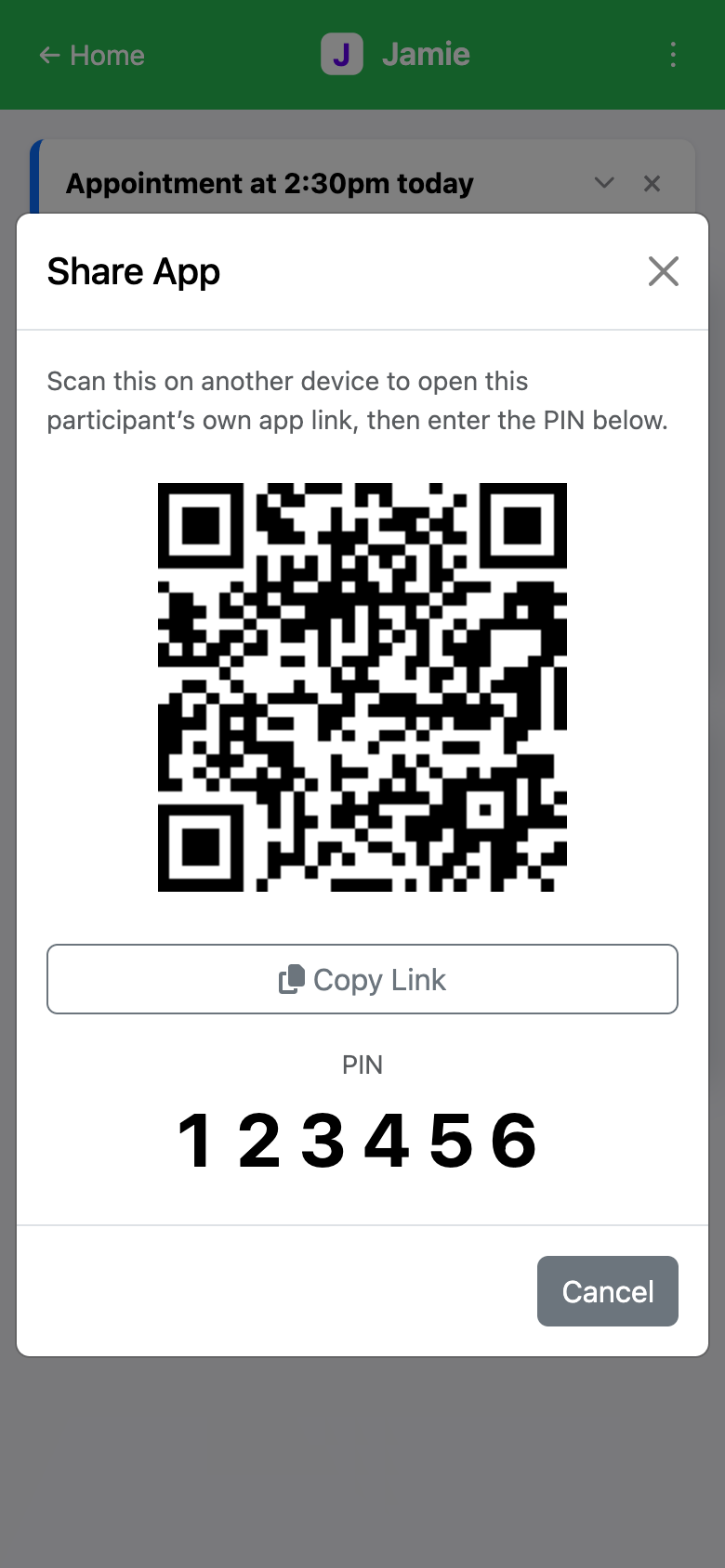
Open Share App from the menu to display a QR code and the current PIN. Another support worker can scan it with their own phone's camera to open the same participant's app instantly, with no need to forward a link by text or email.
Menu (while in Edit Page)
Backups, export & reset
The app automatically checkpoints your setup as you make changes, so Restore Backup can undo a mistake made while customising things. Export Configuration/Import Configuration save the whole setup to a file - handy for keeping an offline copy, or copying one participant's setup onto a new one. Reset to Factory Settings restores the original standard setup (always checkpointed first, so it's never a one-way trip).
Menu → Logout
Switching to a different support worker
If a different person is about to use this same device, tap Logout - it clears the remembered name/email (not the app link or PIN), and asks the next person for their own details before they log anything.
The last step - reporting on what's been recorded
Generating reports
Reports use a separate link from the app itself (sent alongside it, or available from whoever manages the participant's account) - handy for handing to a coordinator or family member who doesn't need the day-to-day app.
- Open the report link and enter the current PIN.
- Choose a report - one specific category (e.g. "Behaviours of Concern"), or All Data.
- Pick one of the last six months, or set a custom start and end date.
- The matching records download straight away as a spreadsheet.